
Organization Administrators can control which third-party integrations are available to users across their Spherium.ai organization. This allows administrators to align available integrations with organizational security, governance, and compliance requirements.
If an integration is disabled, users throughout the organization will not be able to use that integration within Spherium.ai.
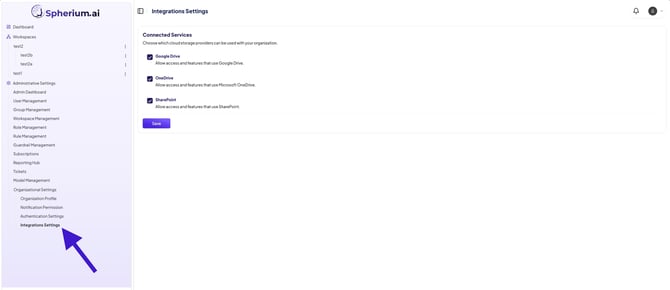
Figure 1. The Integration Settings page allows Organization Administrators to enable or disable supported integrations for their organization.
Before You Begin
- You must be assigned the Organization Administrator role.
- Integration settings are managed at the organization level.
- Changes apply to all users within the organization.
Accessing Integration Settings
- Sign in to Spherium.ai.
- Navigate to Administrative Settings.
- Expand Organizational Settings.
- Select Integration Settings.
The Integration Settings page displays all supported integrations that can be enabled or disabled for your organization.
Enabling or Disabling an Integration
To change the availability of an integration:
- Open Integration Settings.
- Locate the integration you want to configure.
- Select the checkbox to enable the integration or clear the checkbox to disable it.
- Click Save to apply your changes.
Your changes take effect organization-wide after they are saved.
Available Integrations
Depending on your Spherium.ai deployment, available integrations may include:
- Google Drive – Enables users to access and utilize content stored in Google Drive.
- Microsoft OneDrive – Enables users to access and utilize content stored in Microsoft OneDrive.
- Microsoft SharePoint – Enables users to access and utilize content stored in SharePoint.
Additional integrations may become available as new services are supported.
What Happens When an Integration Is Disabled?
When an integration is disabled:
- Users cannot access or use that integration within Spherium.ai.
- Features that depend on the disabled integration are unavailable.
- Existing organizational settings remain unchanged and can be re-enabled at any time.
- Disabling an integration does not delete data stored in the third-party service.
Frequently Asked Questions
Who can manage Integration Settings?
Only users assigned the Organization Administrator role can enable or disable integrations.
Do these settings affect every user?
Yes. Integration Settings are configured at the organization level and apply to all users in your organization.
Can individual workspaces enable a disabled integration?
No. If an integration is disabled at the organization level, it is unavailable across all workspaces and cannot be enabled by workspace owners or workspace administrators.
Can I enable an integration again later?
Yes. Simply return to Integration Settings, enable the desired integration, and click Save.
Best Practices
- Enable only the integrations your organization actively uses.
- Review enabled integrations periodically to ensure they align with your organization's security and compliance policies.
- Disable integrations that are not approved for organizational use to reduce unnecessary access to external services.
Related Articles
- Workspace Management
- Role Management
- Authentication Settings
- Organization Profile
Meta Description
Learn how Organization Administrators can enable or disable integrations for their organization and control which third-party services users can access in Spherium.ai.
Summary
The Integration Settings page allows Organization Administrators to centrally manage which third-party integrations are available within Spherium.ai. Disabling an integration prevents all users in the organization from accessing that service, providing a simple and effective way to enforce organizational governance and security policies.