
Workspace ownership determines who manages the day-to-day administration of a workspace, while Organization Administrators maintain organization-wide governance. This article explains when to use the Transfer feature, who can access it, and how workspace transfers affect parent and child workspaces.
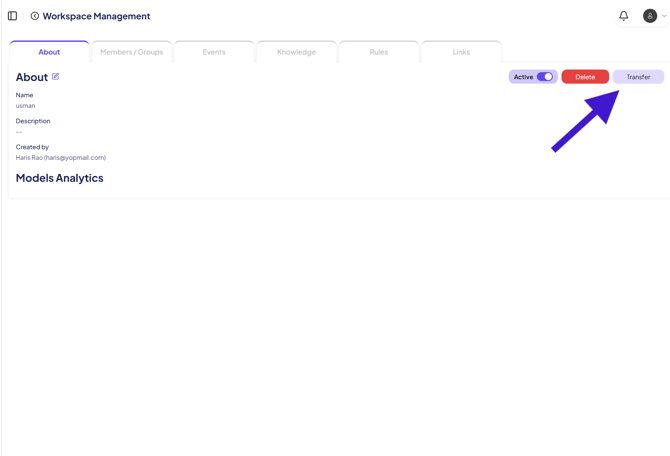
Figure 1. The Transfer button is available only to Organization Administrators.
Why does the Transfer button exist?
The Transfer feature allows an Organization Administrator to recover administrative control of a workspace when necessary.
A common example is when an Organization Administrator has been removed from a workspace or no longer has access to administer it. Rather than requiring the current workspace owner to restore access, an Organization Administrator can transfer ownership of the workspace to themselves or another appropriate user.
This ensures that Organization Administrators can always regain administrative control when it is required for governance, support, compliance, or operational purposes.
Who can use the Transfer feature?
Only users assigned the Organization Administrator role can see and use the Transfer button.
This capability is intentionally restricted because transferring ownership changes administrative control of a workspace.
When should an Organization Administrator use Transfer?
Use the Transfer feature when:
- An Organization Administrator needs to regain administrative access to a workspace after being removed.
- The current workspace owner has left the organization.
- Workspace ownership needs to be reassigned to another user.
- Administrative ownership needs to be updated as part of organizational changes.
- A workspace requires intervention for governance, compliance, or support.
Can I transfer a parent workspace and all of its child workspaces?
No.
Transferring a parent workspace only changes ownership of the selected workspace.
Any child workspaces retain their current ownership and must be transferred individually if ownership changes are required.
This behavior prevents unintended ownership changes across an entire workspace hierarchy.
Frequently Asked Questions
Why can't I see the Transfer button?
Only Organization Administrators can see and use the Transfer button.
I'm an Organization Administrator but I'm no longer a member of the workspace. How do I regain access?
Open the workspace in Workspace Management and select Transfer.
Transfer ownership to yourself or another authorized user. Once ownership has been transferred, you can manage the workspace and, if needed, add yourself back as a workspace member.
Does transferring a parent workspace also transfer its child workspaces?
No.
Child workspaces remain under their existing ownership and must be transferred individually.
Best Practices
- Reserve Organization Administrator privileges for trusted administrators.
- Use the Transfer feature only when administrative ownership needs to change or administrative access must be restored.
- Review workspace ownership periodically to ensure it reflects current business responsibilities.
- When working with workspace hierarchies, review each child workspace separately, as ownership changes are not inherited.
Summary
The Transfer feature is an administrative recovery and ownership management tool designed specifically for Organization Administrators. It ensures that administrators can always regain control of a workspace when necessary, even if they are no longer members of that workspace. Because ownership changes can significantly affect access and administration, only Organization Administrators can perform workspace transfers.